How to Move WhatsApp Chats to a New Phone Without Losing Anything
WhatsApp can move your messages, photos and videos straight to a new phone over Wi-Fi. Here is the safe step-by-step way, plus backup options.
Article Content
Moving to a new phone is stressful enough without wondering whether years of WhatsApp conversations will survive the switch. WhatsApp has two official ways to do it, and both keep your messages. The direct transfer is faster, copies media over local Wi-Fi, and does not depend on a cloud backup that may be out of date.
The catch is timing. The direct transfer only works before WhatsApp is activated on the new phone. If you have already verified your number on the new device, that option is gone, and you will need a backup instead.
Before you start
- Keep the old phone signed in to WhatsApp and do not factory reset it yet.
- Charge both phones, because a large chat history can take a while.
- Put both phones on the same Wi-Fi network and keep them close together.
- Update WhatsApp on the old phone to the latest version.
- Make sure the new phone has not been set up with your WhatsApp number.
- Take a Google Drive or iCloud backup anyway, as a fallback.
Route 1: Transfer chats directly over Wi-Fi
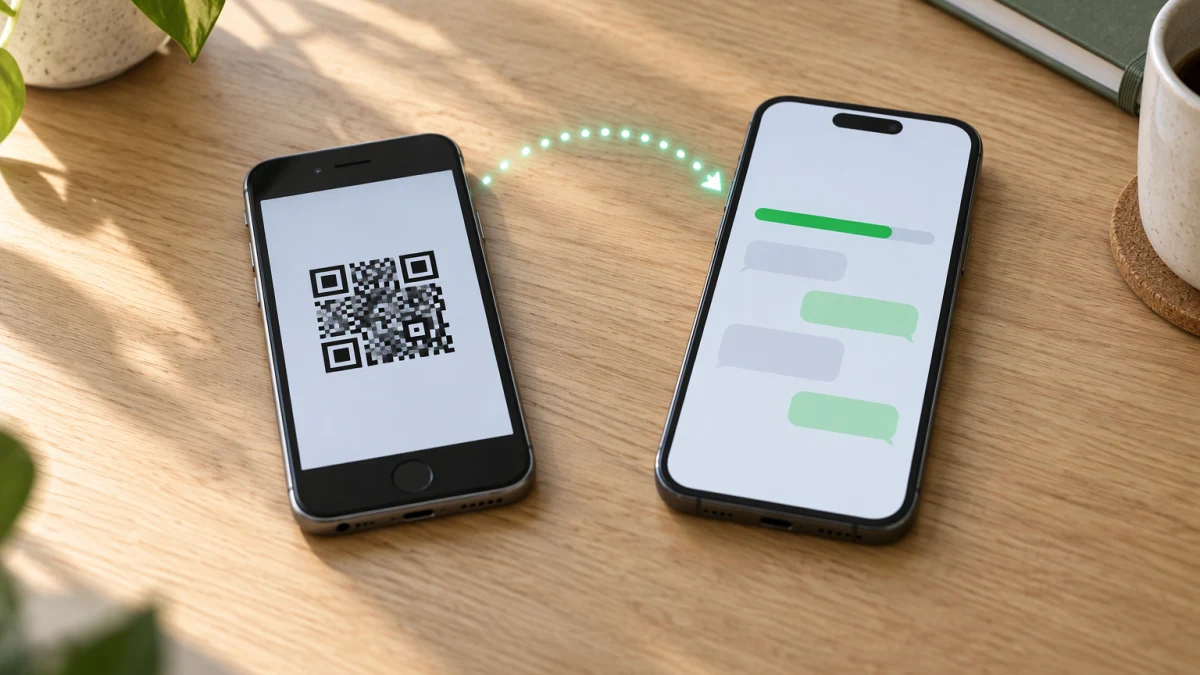
This is the method WhatsApp recommends when both phones are in front of you and use the same platform. On the old phone, open WhatsApp and go to Settings, then Chats, then Transfer chats, then Start. Accept the permissions and get ready to scan a QR code.
On the new phone, install WhatsApp and open it. Follow the setup screens until you reach the transfer step, where the app shows a QR code. Scan that code with the old phone. The two devices connect locally and the transfer begins over Wi-Fi.
Leave both screens on and the app in the foreground until the progress bar finishes. When it does, verify your number on the new phone. The old phone is signed out once the new device takes over, so do not wipe it until you have opened a few chats and confirmed the media came across.
Route 2: Back up and restore
If the phones cannot be together, or WhatsApp is already active on the new device, use the backup route.
On Android: open WhatsApp, then Settings, then Chats, then Chat backup, then Back up now, with a Google account selected. Install WhatsApp on the new phone, verify the same number, and tap Restore when the app offers to restore from Google Drive. The backup includes messages and media, though Google Drive backups expire if the old phone stays offline for too long.
On iPhone: the same menu backs up to iCloud. Sign in with the same Apple account on the new iPhone, install WhatsApp, verify the number and restore when prompted.
Moving between Android and iPhone
Chat history does not cross platforms through Google Drive or iCloud. Android to iPhone uses Apple's Move to iOS app during setup; iPhone to Android uses the Transfer to Android option in WhatsApp on the iPhone. Both need both phones present and can take a long time for a large history. Do not expect a Google Drive backup to appear on an iPhone, or an iCloud backup to appear on Android.
What actually moves
| Item | Transferred? |
|---|---|
| Messages and group chats | Yes |
| Photos, videos and voice notes | Yes, in a direct transfer or a backup that includes media |
| Profile photo, name and about | Yes |
| Disappearing messages settings | Recheck after the transfer |
| History older than the backup | Only what the backup contains |
| Call history | No |
Common mistakes
- Activating WhatsApp on the new phone before running the transfer, which removes the QR option.
- Logging out or wiping the old phone too early.
- Using a different phone number, because the account is tied to the number.
- Relying on an old backup and losing the most recent chats.
- Letting the phones sleep or switching apps during the transfer.
Avoid third-party transfer apps
WhatsApp chats are end-to-end encrypted, and the official tools handle the keys. Apps that promise to merge or copy chats by asking for account access are risky: they can expose data, break encryption, and leave you with a half-restored history. The built-in transfer and the platform migration tools are enough.
After the transfer
Open a few chats, play a voice note, check a group with media, and confirm your profile details. Keep the old phone powered off but intact for a week in case something is missing. Once you are satisfied, reset it and remove it from your account. If you are still choosing the new handset, our phone comparison tool can help you check storage and specs before you commit to a model.