Laptop SSD Upgrade: When a New Drive Is Worth It and How to Choose One
A failing or cramped drive is the most common reason an older laptop feels slow. How to tell whether an SSD upgrade will help, what to buy, and what to back up first.
Article Content
An SSD upgrade is usually the cheapest way to make an older laptop feel new again, but it is not a cure for every slow machine. A ten-year-old dual-core processor will still struggle with a modern browser after the drive is swapped. The useful question is whether the storage is actually the bottleneck, and whether the laptop lets you replace it at all.
1. Confirm the drive is the problem
Open Task Manager on Windows and watch the Disk column for a minute or two of normal work. If it sits near 100 percent while the processor and memory stay low, the drive is the limit. Other signs are a boot that takes more than a minute, file copies that crawl, and a system that becomes unresponsive when several programs open at once.
Healthy drives usually read and write quietly. Clicking or grinding from a mechanical hard drive, or warnings from a SMART monitoring tool, mean the drive should be replaced before it fails rather than after. Back up immediately if you see either.
2. Find out what the laptop accepts
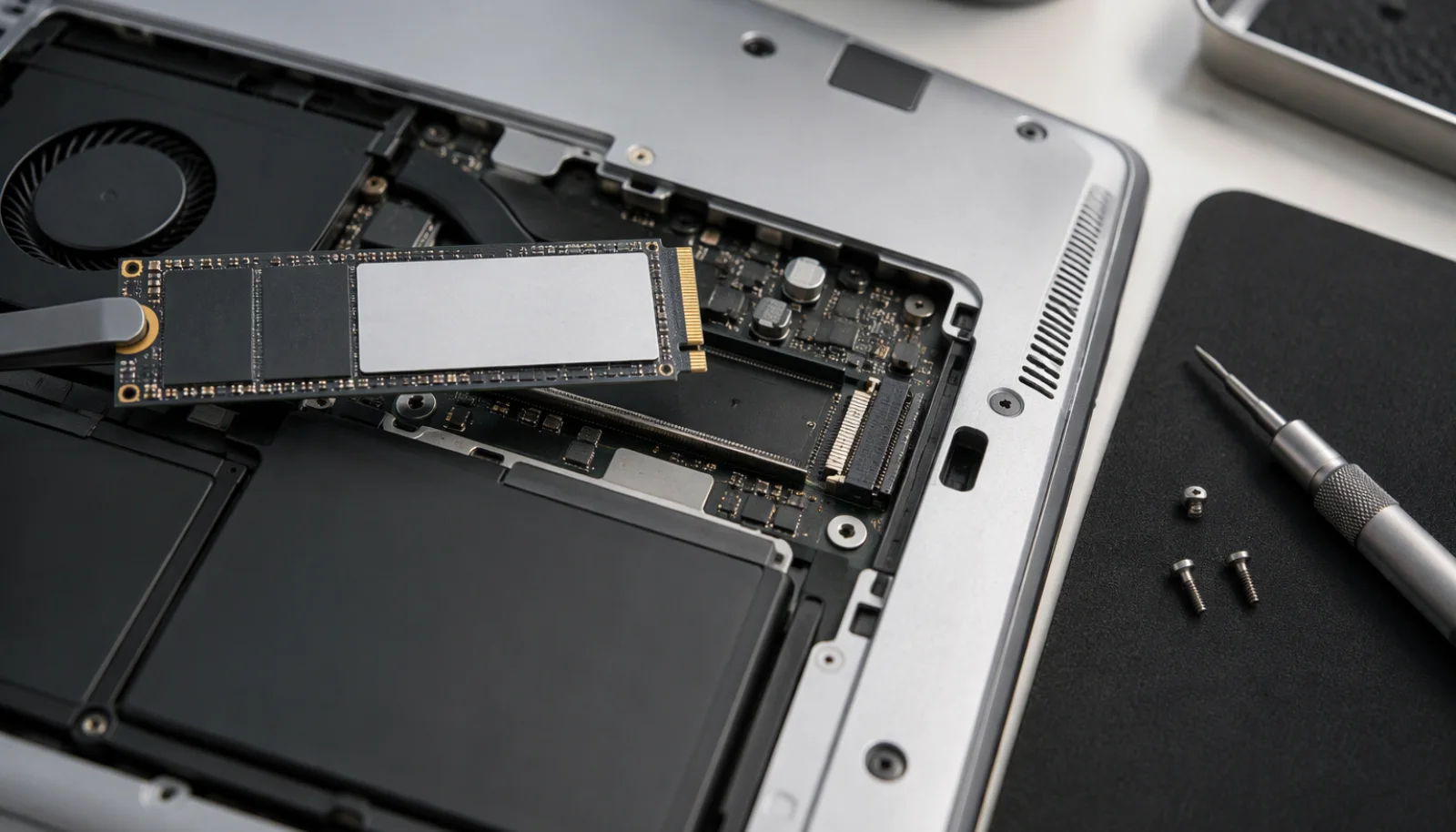
Older machines generally use a 2.5-inch SATA bay. Newer and thinner laptops use an M.2 slot, and the slot is not universal: some M.2 slots accept only SATA drives, some accept NVMe, and the connector keying differs. Length matters too, with 2280, 2242 and 2230 drives in use, and a 15.3-inch IdeaPad such as the IdeaPad Slim 3 15IRH10 takes the shorter 2242 size.
Check the laptop model page for the storage description, then open the bottom panel and look at the slot before ordering. The specification row that reads something like M.2 2242 PCIe 4.0x4 is the exact answer you need.
3. SATA or NVMe, and does the difference matter
A SATA SSD tops out around 550MB/s. An NVMe drive on a Gen3 slot reaches roughly 3,500MB/s, and Gen4 can pass 7,000MB/s on paper. In everyday use the gap between SATA and Gen3 NVMe is noticeable in large file work and program installs but modest in web browsing. Buying a Gen4 drive for a Gen3 slot works, but the drive runs no faster than the slot allows.
Match the drive to the slot first, then to the budget. Paying extra for a speed the laptop cannot use is the most common upgrade mistake.
4. Choose capacity and quality
512GB is a sensible minimum today, and 1TB is the comfortable point for people who keep photos, video projects or several large games. Leave 15 to 20 percent of the drive free so the controller has room to manage writes. Drives with a DRAM cache usually hold speed better during long transfers; DRAM-less models rely on a portion of the flash as cache and can slow down once that cache fills.
Also look at the endurance figure, listed as TBW, and at the warranty length. A drive with a five-year warranty and a clear TBW rating is a safer buy than an unbranded unit with neither.
5. Back up before you touch anything
Copy personal files to an external drive or cloud folder first. If the laptop uses BitLocker, note the recovery key before changing hardware, because a drive swap can trigger a recovery prompt. Create a Windows installation USB as a fallback, and check whether opening the laptop voids the shop warranty. Work on a table, touch a grounded metal object before handling parts, and keep the screws in a cup.
6. Clone or install fresh
Cloning copies the old drive, including the operating system, to the new one. It is fast and keeps every setting, but it also copies years of accumulated software. A clean install is slower to set up and gives a tidier result, especially on a machine that has been upgraded across several Windows versions. If you clone, the new drive must be the same size or larger, and the partition table should match the original.
7. After the swap
Confirm that TRIM is enabled and that the drive is detected at its full capacity. Install the manufacturer's firmware tool once to check for updates, then keep the old drive in a cheap USB enclosure as an external backup. Run a health check every few months and watch the temperature under load; a drive that runs hot in a dusty laptop will slow down and age faster.
8. When an SSD is not the answer
If the processor is several generations old, memory is below 8GB, or the drive is soldered eMMC storage, an SSD swap will help less than expected. In those cases, adding RAM or replacing the machine is the better spend. Compare the full specification sheets in our laptop catalogue and check the storage type, RAM support and M.2 slot details before deciding. Our guide on how to buy a laptop in Bangladesh covers the other checks worth making first.