Honor Choice T10 Tips and Tricks: 8 Settings That Make a Budget Phone Better
Eight practical settings and habits that get the most out of the Honor Choice T10, from the 90Hz display and microSD storage to 10W charging, Android Go apps and the single 13MP camera.
Article Content
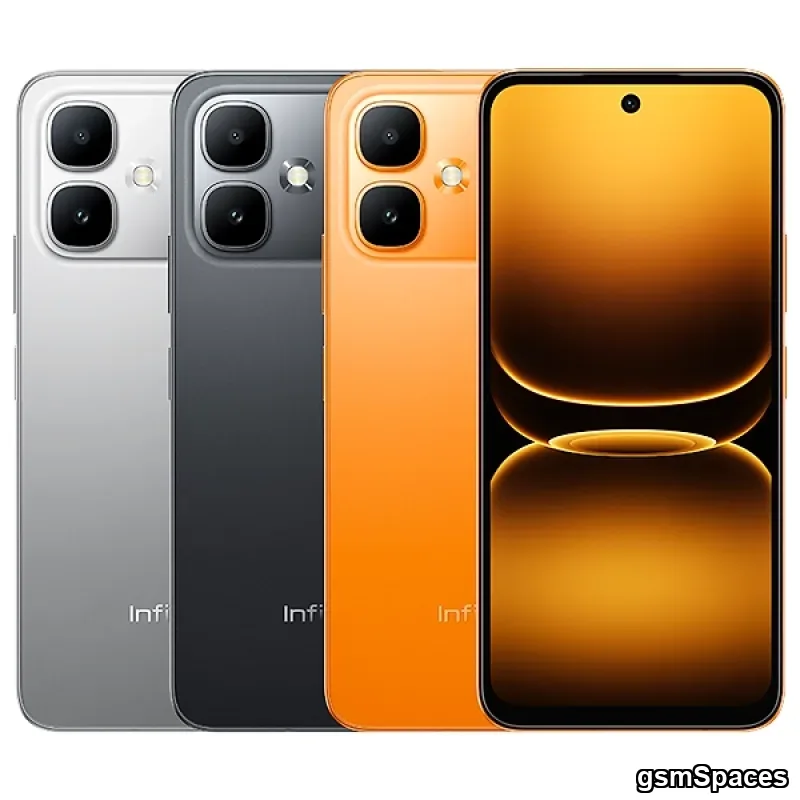
The Honor Choice T10 is built for buyers who want a large screen and a big battery without spending flagship money. It pairs a 6.75-inch 90Hz LCD with a 5,000mAh cell, Android Go and a single 13MP camera, and it runs on a Unisoc T7250 or T610 depending on the version. None of that makes it a slow phone, but it does mean the default settings are tuned for cost rather than comfort.
These eight changes take about twenty minutes in total and make the phone noticeably easier to live with. They are all built-in options or free habits, and none of them requires rooting or installing anything unusual.
1. Decide how the 90Hz screen should behave
The 6.75-inch panel runs at 90Hz, which makes scrolling and animations feel smoother than a standard 60Hz screen. Smoothness costs battery, so open Settings, then Display, and see whether your unit offers a refresh-rate choice. If it does, keep 90Hz for daily use and switch to the standard rate only on days when you need every minute of battery.
The resolution is 720 x 1600, which is normal for this price and looks perfectly sharp at normal viewing distance. Do not go looking for hidden resolution settings to change; there is nothing to gain here.
2. Move photos and videos to a microSD card early
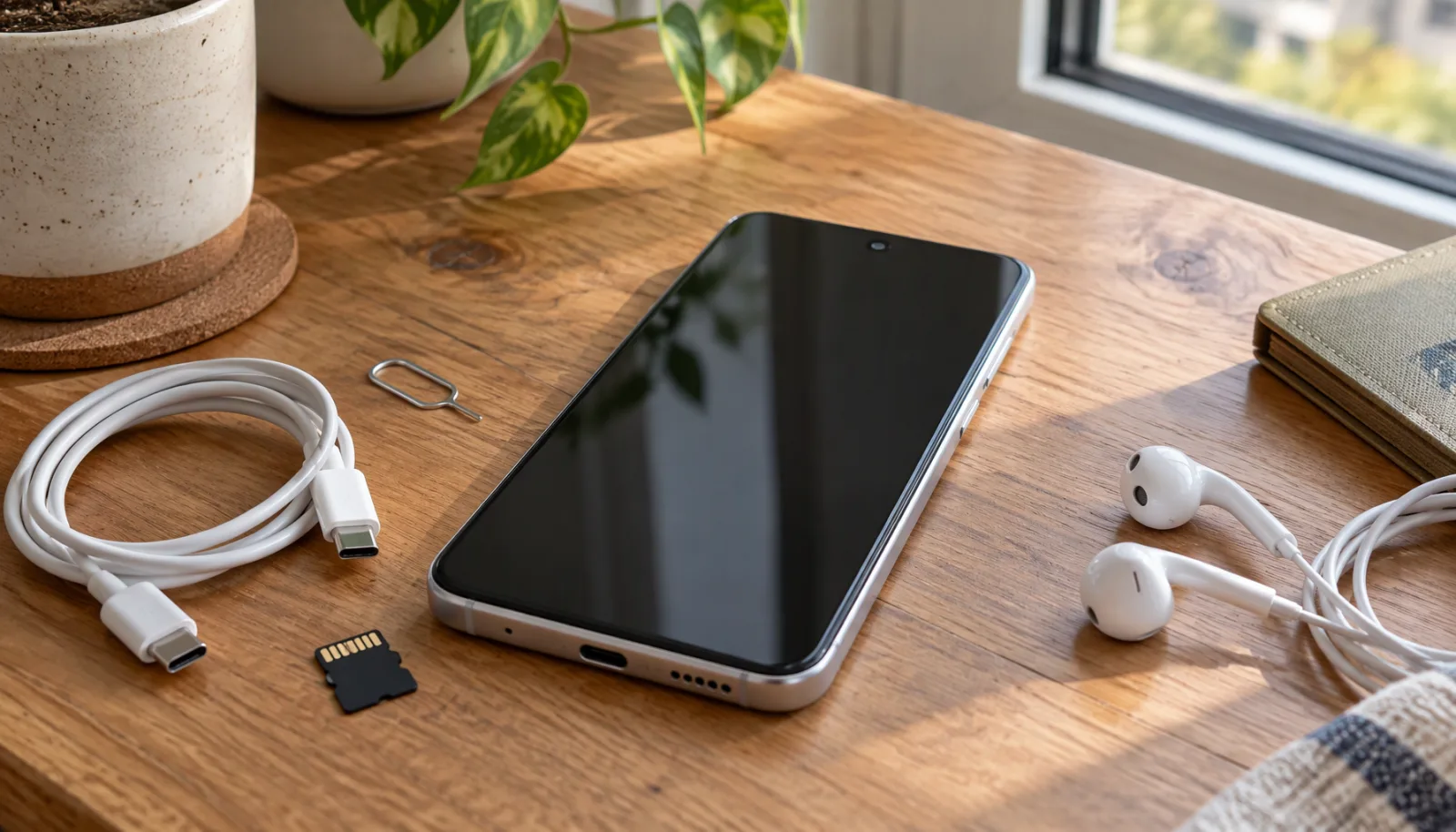
If you bought the 32GB version, the free space disappears faster than expected once apps and updates settle in. The T10 has a dedicated microSDXC slot, which means you can add a card without giving up either SIM slot, so use that advantage from the first week.
- Buy a branded UHS-I card rather than the cheapest one on the shelf; slow cards make the gallery and camera feel sluggish.
- Open the camera app's settings and set the storage location to the card if that option is available on your unit.
- Move existing photos and downloaded videos to the card using the Files app.
- Format a new card as portable storage, not as internal storage, so you can move it between phones later.
Keep a copy of important photos somewhere else as well. A memory card is storage, not a backup.
3. Learn the 10W charging rhythm
The 5,000mAh battery charges at 10W, so this is a phone that prefers a calm overnight charge over a quick top-up before leaving the house. A higher-wattage USB-C charger will not make it faster, because the phone itself limits how much power it accepts.
Two habits make the battery last longer. First, avoid heavy gaming or long video calls while the phone is plugged in, since heat is what wears a battery out. Second, do not wait for the phone to shut down at one percent; plugging in around 20 to 30 percent is gentler, and there is no need to force it to stay at 100 percent all day.
4. Give Android Go lighter work
The Go edition of Android is designed for modest hardware, and it works best when you respect that design. Prefer the lighter Go versions of apps where they exist, and skip heavy games or multiple always-on social apps if you want the interface to stay responsive.
Open WhatsApp and go to Settings, then Storage and data, then Media auto-download, and turn off videos on mobile data. Do the same in any other messaging app you use. Forwarded videos are the fastest way to fill a 32GB phone, and stopping auto-download costs you nothing except a tap when you actually want to watch something.
5. Keep the home screen and storage lean
A busy home screen with several live widgets is expensive on a phone with 3GB or 4GB of RAM. One weather widget and a simple clock are fine; a stack of animated widgets is not. Remove apps you have not opened in a month, and clear the cache of heavy apps such as browsers when the storage bar starts turning red.
Android manages memory on its own, so skip the "RAM booster" and "phone cleaner" apps. They promise speed and usually just clear the same caches you can clear yourself, while running in the background and using the resources they claim to free.
6. Get better photos from the single 13MP camera
One camera means no ultra-wide and no zoom lens, so the best results come from position rather than settings. Tap the screen to focus on your subject before every shot, keep the lens clean with a soft cloth, and shoot in good light whenever possible.
- Move closer instead of pinching to zoom; digital zoom only crops the picture.
- Hold the phone with both hands and pause for a moment after tapping the shutter in low light.
- Turn on the camera grid in settings to keep horizons straight.
- Record video at 1080p and 30 frames per second, which the phone handles comfortably.
- For selfies, hold the phone at eye level and face a window rather than standing with your back to it.
7. Cut mobile data use deliberately
Turn on Data Saver in Settings, then Network and internet, and allow only the apps you actually need to use data in the background. This is especially useful on prepaid connections where a background update can quietly eat a day's allowance.
Download map areas for your regular routes so navigation works without a signal, and set video apps to a lower quality on mobile data. None of these changes affects calls or messages.
8. Set up protection and updates on day one
The phone has a glass front and a plastic back, and the specification sheet does not list a water-resistance rating, so fit a case and a screen protector before the first drop rather than after it. Keep the phone away from rain and kitchen counters.
For security, set a six-digit PIN and add a recovery method to your Google account. The published sensor list for this model is unspecified, so do not assume any biometric unlock is present; a PIN works on every unit. Keep Play Protect enabled and install apps only from the Play Store.
Finally, open Settings, then System, then System update once a month. Budget phones are often last in line for attention, and the only way to know a security patch has arrived is to check.
Settings cheat sheet
| Setting | Where to find it | Why it helps |
|---|---|---|
| Refresh rate | Settings, Display | Choose 90Hz for smoothness or the standard rate for battery |
| Camera storage | Camera app, Settings | Keeps the 32GB internal storage free |
| Media auto-download | WhatsApp, Storage and data | Stops forwarded videos from filling the phone |
| Data Saver | Settings, Network and internet | Blocks background data use you did not ask for |
| System update | Settings, System | Delivers security patches when they arrive |
What not to expect
Honest expectations save disappointment. The T10 is a 4G phone with a budget chipset and a 720p screen, so it is not a gaming device and it will not match a flagship camera in dim light. It has no NFC, which means no tap-to-pay, and its 10W charging is deliberately slow.
Used within those limits, it covers calls, messaging, browsing, video and photos without drama, and the 5,000mAh battery comfortably lasts a full day of normal use. If you want the exact specifications before changing any settings, they are all listed on our Honor Choice T10 page, and the comparison tool shows how it lines up against other budget models.