Helio 150 Tips and Tricks: 8 Settings That Get More From the 7,000mAh Battery
Eight practical changes for the Helio 150, from tuning the 120Hz AMOLED and living with fixed 128GB storage to getting cleaner shots from the 64MP camera and charging the 7,000mAh cell sensibly.
Article Content
The Helio 150 is built around three things: a 6.83-inch 120Hz AMOLED screen, a 7,000mAh silicon-carbon battery and 45W charging. Those are strong numbers for ৳27,999, but the default setup on a new Android phone is usually tuned for the average user rather than for you. A short session in the settings menu can make the phone faster to use, easier on the battery and better with storage.
These eight changes take about twenty minutes in total. They all use built-in options or cheap habits, and none of them needs root access or a third-party launcher. If you want the full hardware picture first, the Helio 150 specifications page lists every detail we verified.
1. Decide how the 120Hz AMOLED should behave
The 6.83-inch AMOLED panel runs at 120Hz, which is the main reason scrolling and animations feel smooth on this phone. The trade-off is battery drain, especially at high brightness. Open Settings, then Display, and look for the refresh rate option. If your unit offers a choice between a high rate and a standard rate, keep the high rate for daily use and drop to the lower one only when you are travelling or far from a charger. Do not hunt for hidden resolution settings; the panel runs at 1208 x 2644 and there is no benefit in changing that.
While you are in the display menu, set the brightness to manual for indoor use and leave auto-brightness for outdoors. The panel can hit 5,000 nits at peak, which is excellent in sunlight and complete overkill in a dark room.
2. Treat the 128GB as a fixed budget
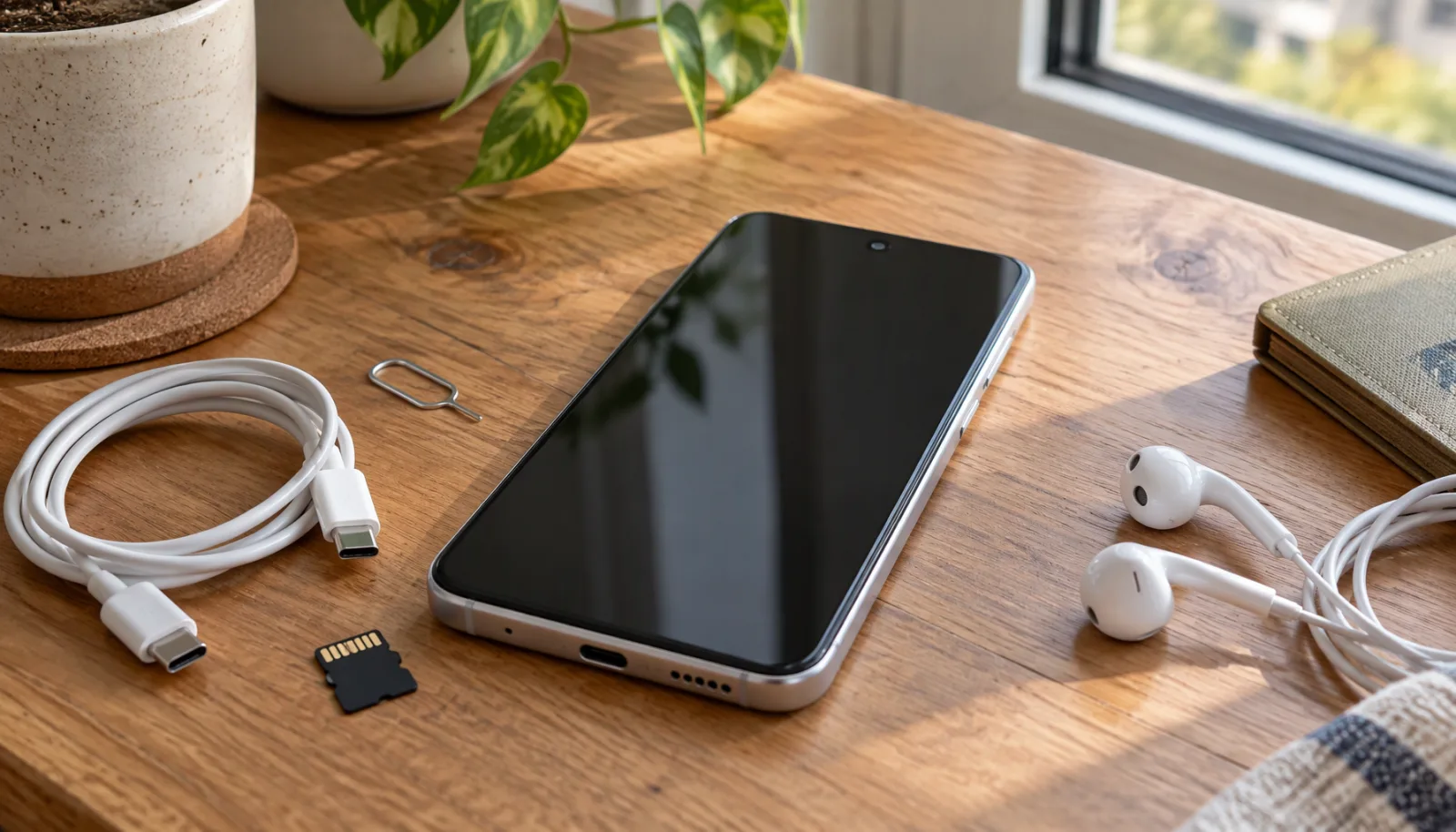
There is no microSD slot on the Helio 150, so the 128GB of UFS 2.2 storage is all you get. That is enough for most people, but only if you decide early what belongs on the phone. Start by opening Settings, then Storage, and see which categories are already large after your first app installs and updates.
- Move old photos and videos to a cloud account or a computer once a month rather than once a year.
- Use a USB-C flash drive through the phone's OTG support to move large video files without a computer.
- Check messaging apps for auto-downloaded media. A single busy group chat can quietly store several gigabytes of images and clips.
- Delete installed games you are not actively playing. They are usually the largest single items on a phone.
If you record a lot of video, the storage budget matters even more because the phone supports 2K capture, which produces larger files than 1080p.
3. Use the 64MP mode for detail, not for everything
The main camera is a 64MP Sony IMX682 sensor, but it does not shoot at 64MP by default. In normal mode the phone combines pixels to produce smaller, brighter photos that are easier to share and faster to save. The full 64MP mode is best reserved for scenes with plenty of light where you plan to crop or print: signage, documents, landscapes and group shots where faces will be enlarged.
For indoor shots at night, stay in the default mode and keep the phone steady. The sensor uses electronic stabilisation rather than a moving lens element, so it helps with small hand movements but cannot rescue a long exposure taken while walking.
4. Keep 2K video for the shots that deserve it
The Helio 150 can record at 2K and 1080p, both at 30fps. For everyday clips that will end up on social media, 1080p is the smarter choice: files are smaller, the phone stays cooler and sharing is faster. Switch to 2K only for travel footage or anything you might edit later.
The 2MP macro camera is a fixed-focus helper. It works best at a very specific distance, so move the phone slowly toward the subject until the frame sharpens instead of tapping around the screen hoping for focus.
5. Charge the 7,000mAh cell sensibly
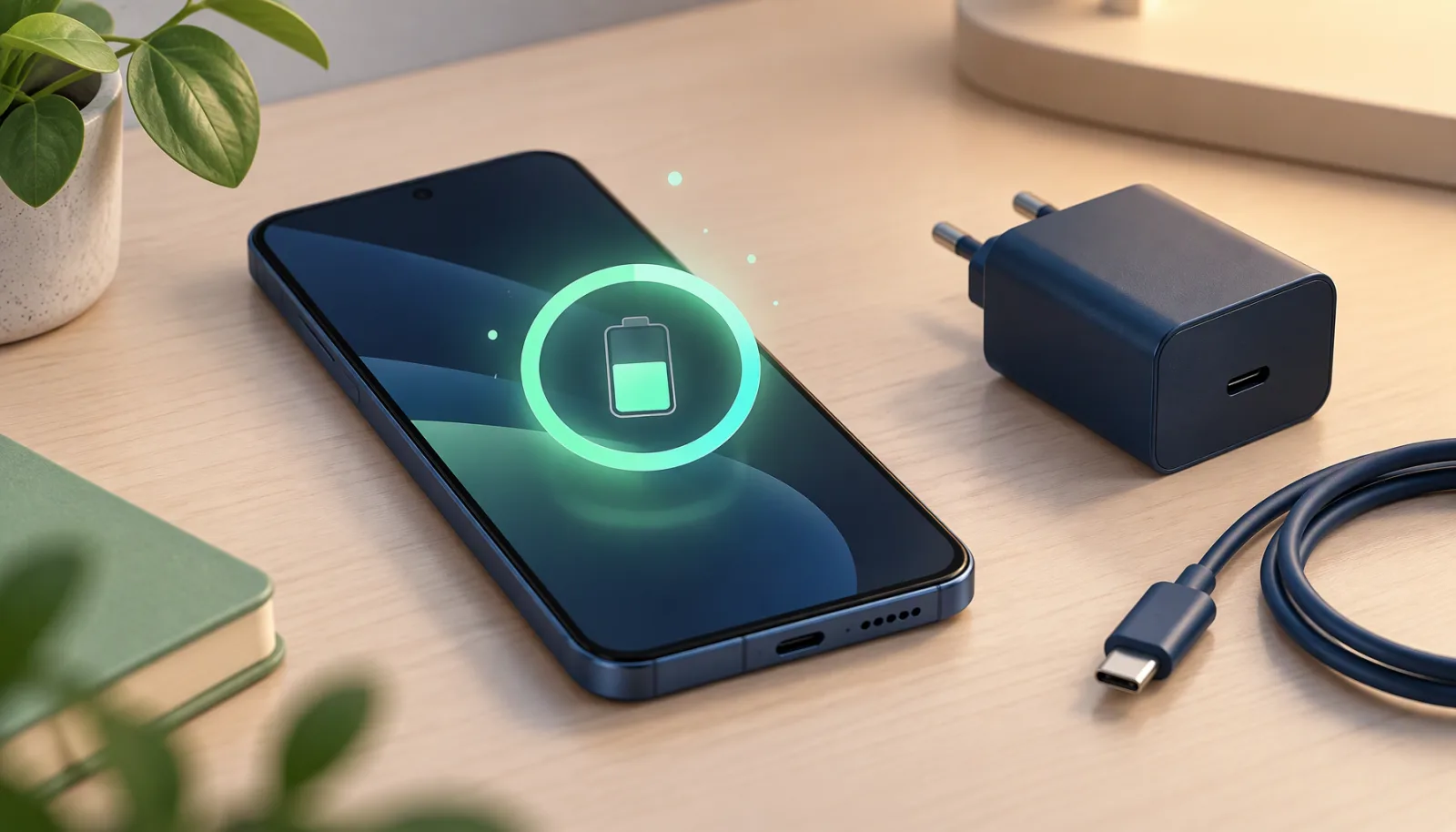
With 45W wired charging, the Helio 150 does not need to be plugged in overnight. A short top-up while you get ready in the morning is usually enough to carry the phone through a full day, and it keeps the battery away from long stretches at 100 percent, which is what ages lithium cells fastest.
- Use a charger and cable that support the phone's fast-charging standard. A random low-power adapter will still work, just much more slowly.
- Take the case off if the phone gets noticeably warm while charging, especially in summer.
- Do not leave the phone charging under a pillow or on a bed; heat is the enemy of battery life.
- If you only need a little power before going out, stop at 70 to 80 percent and finish the charge later.
The large cell also changes habits in the other direction: you can stop charging to 100 percent every night and still start the next day with plenty in reserve.
6. Set up the under-display fingerprint properly
The fingerprint sensor sits under the display. Register the same finger twice from slightly different angles, and add your second hand as well. That sounds excessive, but it makes unlocks noticeably more reliable when your hands are dry or you are holding the phone at an awkward angle.
Also set a PIN you can type quickly without looking. Face unlock is convenient, but the PIN is the fallback that always works, and it is the one you will need in a hurry at a checkout counter.
7. Make NFC and the IR blaster earn their place
NFC is one of the features that separates the Helio 150 from cheaper 4G phones. Turn it on and use it for tap-to-pay where your bank supports it, and for quick pairing with NFC-enabled speakers and accessories. Leave it off when you are not using it; there is no reason to keep the radio active all day.
The infrared blaster is the sleeper feature. With a free remote app, the phone can control televisions, air conditioners and fans that use an IR remote. Set up the devices in your home once and the phone becomes a backup remote for the rooms where the original has gone missing.
8. Go USB-C for audio and respect IP64
The Helio 150 has dual stereo speakers, which are good for videos and speakerphone calls, but there is no 3.5mm headphone jack. For wired listening, use USB-C earphones or a small USB-C to 3.5mm adapter, and keep one adapter in your bag so you are not caught without it. Bluetooth is the easier option for commuting, and the phone's battery is large enough that wireless audio does not make a noticeable dent.
Finally, treat the IP64 rating as splash protection, not as a licence to take the phone into water. Rain and spills are fine; pools, showers and beaches are not. Wipe the phone dry after exposure and never charge it while the USB-C port is wet.