Laptop Overheating in Bangladesh: 9 Cooling Fixes That Actually Work
A 35°C room leaves a laptop with little thermal headroom. Nine practical fixes, from vent clearance and dust cleaning to Windows power settings, plus the warning signs that need service.
Article Content
A laptop that runs hot is not automatically a broken laptop. Every thin machine sold today is designed with a narrow thermal margin, and that margin assumes a room around 25°C. In Dhaka, Chattogram or Sylhet, a summer afternoon easily passes 34°C before the laptop even starts working. The cooling system then has to remove heat into air that is already warm, so the fan runs faster, the processor lowers its clock speed sooner, and the palm rest starts to feel uncomfortable after an hour.
Most overheating complaints we see are not hardware failures. They are a blocked vent, a layer of dust, a soft surface, or a power setting that keeps the processor boosting for no reason. The nine fixes below start with the ones that cost nothing and move toward the ones that involve opening the machine. Work through them in order and stop when the temperatures return to normal.
1. Know what "too hot" actually means
A modern laptop processor idles somewhere between 40°C and 55°C, sits near 60–75°C during ordinary browsing and office work, and reaches 80–95°C under sustained load such as gaming, video export or a large compilation. Mobile chips from Intel and AMD are built to run near 95–100°C before they throttle, and most graphics chips throttle in the mid-80s. Throttling is the machine protecting itself: clock speeds drop, the fan ramps up, and performance falls, but nothing is damaged.
The number that matters is not the peak, it is the behaviour. A laptop that idles at 70°C with the fan at full speed on an empty desktop is not normal, even though 70°C is a harmless figure under load. If the machine shuts down without warning, restarts during games, or burns your leg through trousers within twenty minutes, treat it as a fault rather than a habit.
Task Manager shows processor, memory, disk and GPU usage but not temperature. Use the utility that came with the laptop, or a reputable free monitoring tool, and note the idle figure after ten minutes of doing nothing. That single number tells you more than any screenshot taken mid-game.
2. Give the vents one to two centimetres of air
Almost every laptop pulls cool air through the bottom panel and pushes it out at the hinge or the sides. A duvet, a pillow, a cushion, a lap, or a stack of papers under the machine blocks the intake completely. The fan keeps spinning, the heatsink keeps receiving hot air, and temperatures climb within minutes. This is the single most common cause of a laptop that "suddenly" started overheating after being moved to the bed.
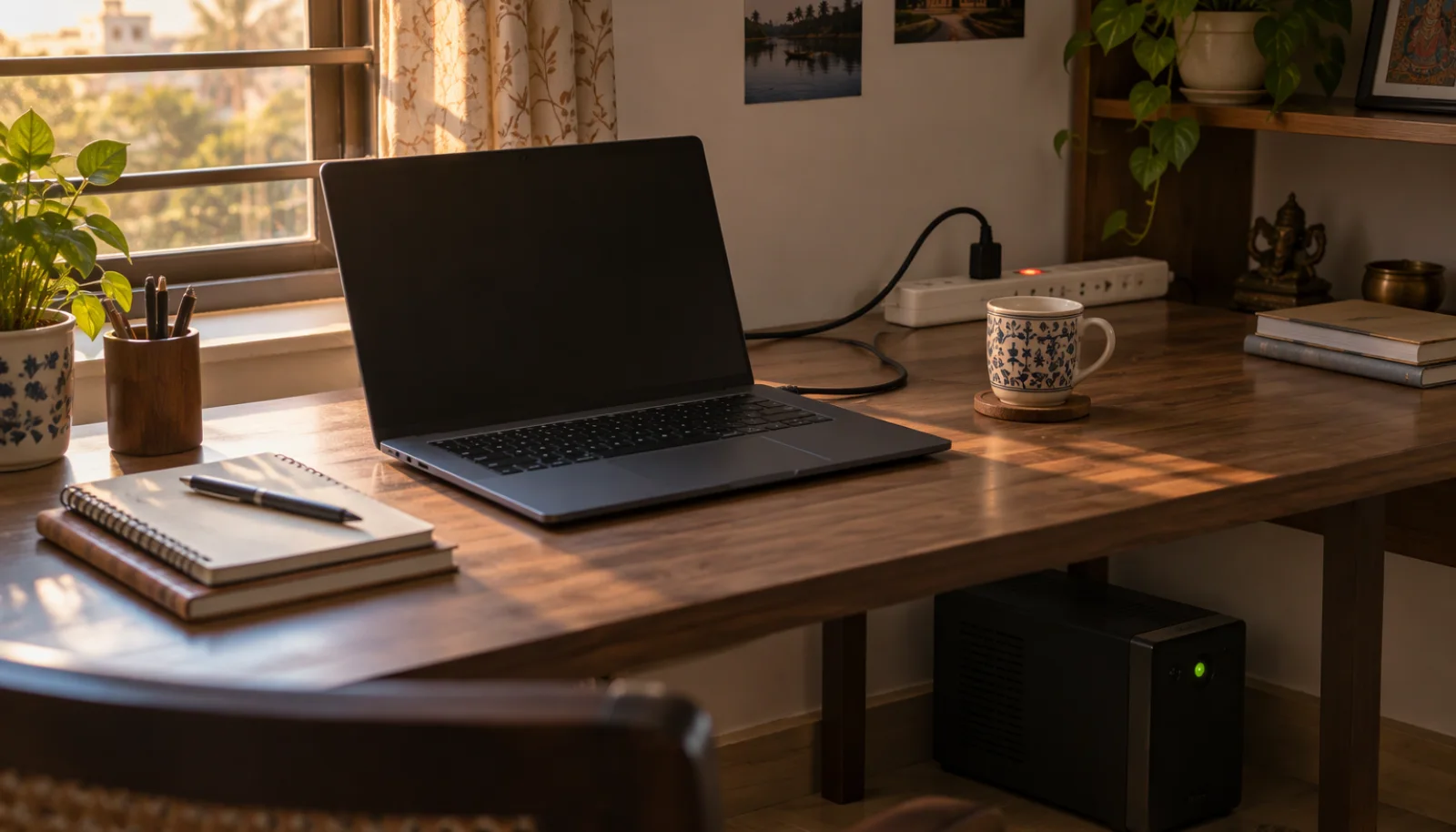
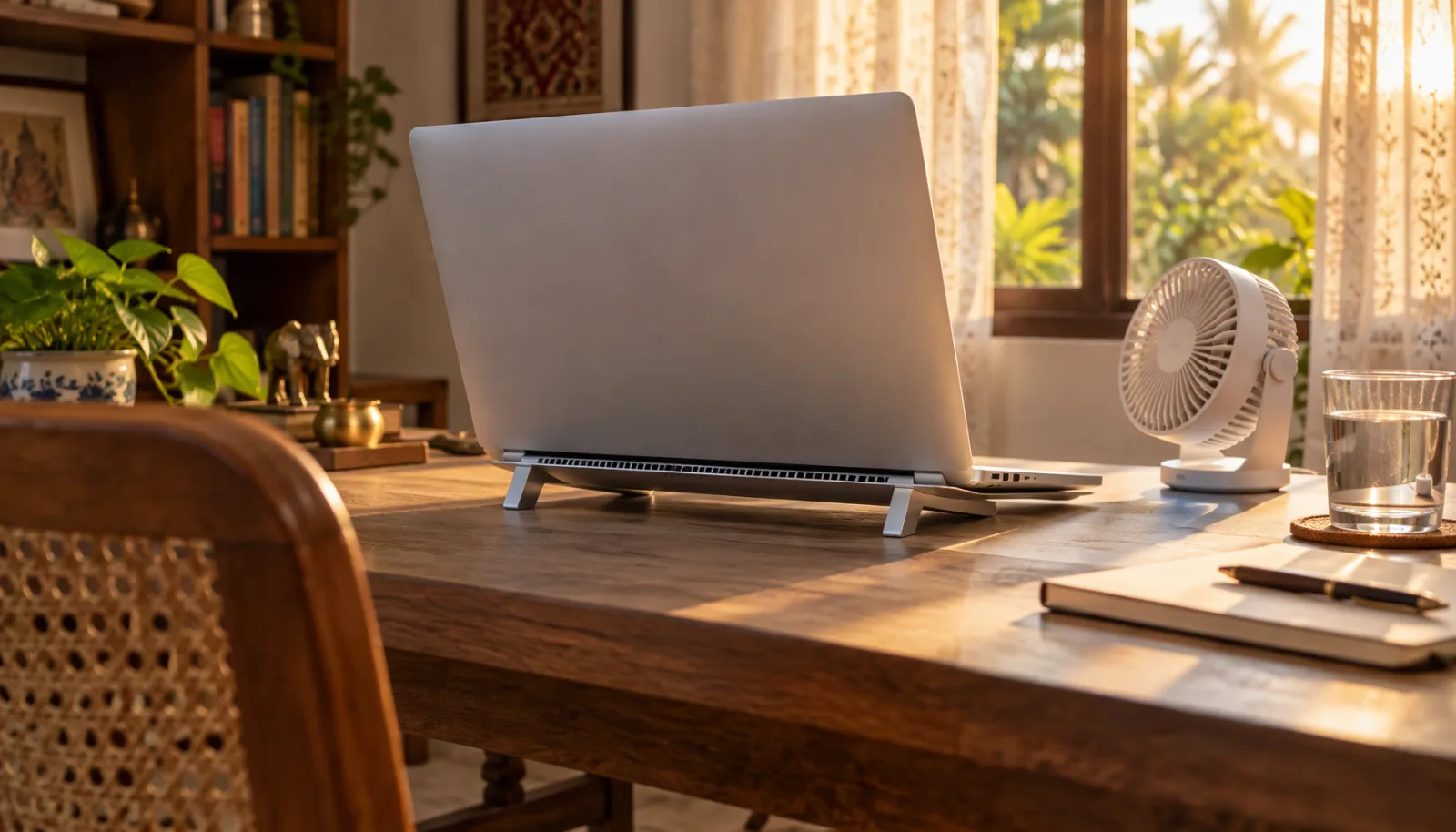
Use the laptop on a hard, flat surface. If you work in bed or on a sofa, put a rigid board or a lap desk underneath. Raising the rear edge by one or two centimetres with a stand, a pair of rubber feet or even two books lifts the intake clear of the table and can lower temperatures by several degrees at no cost.
3. Clean the vents before buying any accessory
Dust settles on fan blades and packs into the fins of the heatsink, where it forms a felt-like mat that air cannot pass through. In a city with as much suspended dust as Dhaka, six to twelve months is enough for a visible layer to build up. If the exhaust grille looks blocked, or the fan is loud while the laptop is idle, cleaning should come before anything else on this list.
Shut the laptop down and unplug it. Short bursts of compressed air through the exhaust and intake are enough for surface dust. Hold the fan blades with a plastic toothpick or a soft brush while you spray, so the air does not spin the bearing far beyond its rated speed. Do not push metal objects into the grille, and do not hold the nozzle close enough to spray liquid propellant onto the board. A vacuum cleaner used gently at the grille can help, but keep the plastic nozzle from touching components.
If the bottom panel needs to come off to reach the fan, and the machine is still under warranty, let the service centre do it. Breaking a clip or stripping a screw to save a service trip is a poor trade.
4. Repaste only when cleaning stops helping
Factory thermal paste is applied thinly and dries out over two to four years, especially on laptops that run hot every day. The sign is a machine that used to stay near 80°C under load and now reaches the mid-90s with the same work, or a fan that stays loud at idle. When the paste is genuinely dried, replacing it typically brings temperatures down by five to twelve degrees.
Repasting is not a cure for a badly designed cooling system, and it is not a job for a first attempt on an expensive machine. Thin chassis often use a vapor chamber or a shared heat pipe with very specific screw torques. If you are not comfortable with the disassembly, a repair shop can do it while the laptop is open for cleaning.
5. Fix the room before you fix the laptop
A fan can only cool against the air it is given. If the room is 35°C, every component runs roughly ten degrees hotter than it would in an air-conditioned office at 25°C, no matter how clean the heatsink is. Afternoon sunlight falling on the lid adds more heat through the chassis than most people expect, so move the desk out of direct sun or close the curtains during the hottest hours.
Keep the exhaust at least ten centimetres away from a wall or a curtain, and do not stack the laptop against a monitor stand. In the monsoon, humidity above 80 percent makes a closed, unventilated room feel hotter than the thermometer suggests; a ceiling fan or a small desk fan moving air across the desk helps the laptop's fan do its job. When you carry a cold laptop from an air-conditioned room into a humid one, give it ten minutes before switching it on, so condensation on the board can evaporate first.
6. Change the Windows power settings
Windows power mode decides how aggressively the processor may boost. On a plugged-in laptop used for browsing, the Balanced mode is the right choice; the Best performance mode keeps cores at high clocks for short tasks and produces more heat for no visible benefit. The old "Maximum processor state 99 percent" trick that circulates in forums does very little on current Intel and AMD chips, which manage their own boost behaviour, so do not rely on it.
Three settings matter more. Turn off startup apps you never open, because they wake the processor all day. Cap the frame rate in games at 60 or even 30 frames per second, which reduces graphics heat far more effectively than any fan curve. And use battery saver when the laptop is unplugged and you are only reading or typing; it lowers boost clocks and extends both battery life and comfort.
7. Find the process that is heating the machine
A laptop that is hot while sitting on the desktop is usually running something it should not. Open Task Manager, sort by processor and GPU usage, and watch for a few minutes. A browser with forty tabs, a stuck Windows Update, an antivirus scan that never ends, a cloud sync client re-uploading a folder, or a background game launcher can each keep a core busy indefinitely. Close or reschedule them, and the temperature drops without any hardware work.
Malware deserves a mention because crypto miners are designed to be quiet and to keep the processor loaded. If the fan is loud at idle and Task Manager shows an unfamiliar process using a steady share of the processor, run a full scan before assuming the cooling system has failed.
8. Choose a stand or a pad that suits the vents
A passive stand that lifts the rear edge is usually the best value. It costs little, adds no noise, and gives the intake the clearance it needs. A powered cooling pad with fans can help by a few degrees, but only if the laptop's own intake lines up with the pad's airflow. Some laptops exhaust through the bottom panel rather than drawing air in, and a pad blowing upward then fights the machine instead of helping it.
Check which way the air moves before buying anything: hold a tissue near the grille while the fan runs. If it is pushed away, that grille is exhaust. Two other accessories are worth avoiding altogether. Ice packs and frozen gel pads create condensation inside the chassis, and a laptop closed inside a bag while still warm traps heat against the battery.
9. Recognise the warning signs that need service
Heat becomes a hardware problem when the symptoms stop matching the workload. Shutdowns during light work, a burning smell, a fan that rattles or grinds, screen artefacts that appear only when the machine is warm, or a trackpad that has started to bulge are all reasons to stop using the laptop and take it to a technician. A swollen battery is a fire risk, not a cosmetic issue; do not press it back into place or keep charging it.
If the laptop only overheats under heavy load and recovers when the load stops, you are dealing with a design limit, not a fault. In that case the fixes above can recover a few degrees, but the real answer is to match the machine to the job. A 15-watt thin laptop will never render video as calmly as a chassis built for a 45-watt processor and two fans.
A five-minute check you can repeat every few months
- Exhaust grille clear, bottom vents unobstructed, rear edge raised.
- Hard flat surface, at least ten centimetres of space behind the hinge.
- Idle temperature noted, fan quiet when nothing is running.
- Task Manager clear of runaway background processes at startup.
- Balanced power mode when plugged in, battery saver when not.
- Dust cleaned every six to twelve months in a dusty area.
- No swollen battery, no rattling fan, no shutdowns during light work.
None of this requires a new laptop. In most cases a clean heatsink, a hard surface and one changed setting bring temperatures back to where they were when the machine was new. If you are shopping for a machine that will spend its life in a hot room, compare the cooling layout as carefully as the processor: vent placement, fan count and the wattage rating of the chip tell you more about sustained comfort than any benchmark peak. Start from our laptop catalogue, and see the rest of our laptop tips for battery care, storage upgrades and buying checks.